How to change your IP address on Android with ExpressVPN


Connecting to ExpressVPN on Android replaces the public IP address websites and apps see with an ExpressVPN server address, instead of the one your mobile carrier or internet service provider (ISP) assigned.
You can choose a VPN location, check that your public IP address has changed, and switch locations whenever you need an IP address associated with a different region. ExpressVPN also offers Dedicated IP for people who need the same address each time they connect.
ExpressVPN doesn't change the private IP address your phone uses on your local Wi-Fi network, but you don’t need to change that to browse with a different public IP address.
What changes when you connect to ExpressVPN on Android
Connecting to ExpressVPN changes the public IP address sites see and the location tied to it.
| Not connected | Connected to ExpressVPN | |
| Public IP | Your carrier's or ISP's address | An ExpressVPN server's address |
| IP-based location | Typically your provider's service region | The ExpressVPN location you selected |
| Traffic between your phone and the VPN server | Not protected by a VPN tunnel | Encrypted through ExpressVPN’s secure tunnel |
| Private IP on your Wi-Fi network | Assigned by your router | Still assigned by your router (unchanged) |
A standard ExpressVPN IP address is usually shared with other users, so websites may see the same public IP address for multiple people instead of one unique to your device.
Change your IP address on Android with ExpressVPN
You'll need a phone or tablet running Android 7.0 or later and an active ExpressVPN subscription. Our Android setup guide covers compatibility and step-by-step installation instructions, including how to install the app if you can't access Google Play.
Connect to an ExpressVPN location or switch to a new one
ExpressVPN has servers in 113 countries and 214 locations.
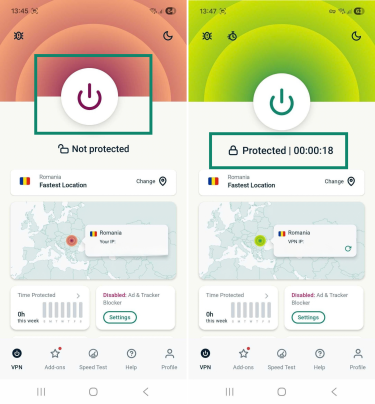
- Open the ExpressVPN app and tap the power button to connect to Fastest Location, the ExpressVPN recommended location. Then wait for Protected to appear under the power button before continuing.
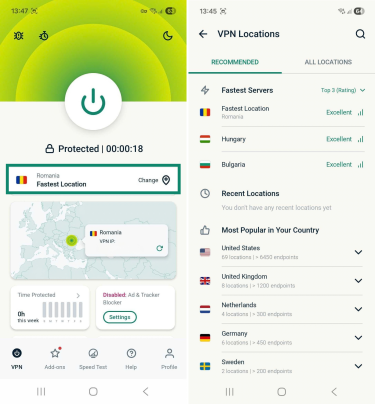
- To use an IP address associated with a different region, tap the Change widget, then browse or search for a specific location and tap it.
- Tap Continue when the app says the VPN will briefly disconnect. Then wait for the Protected confirmation.
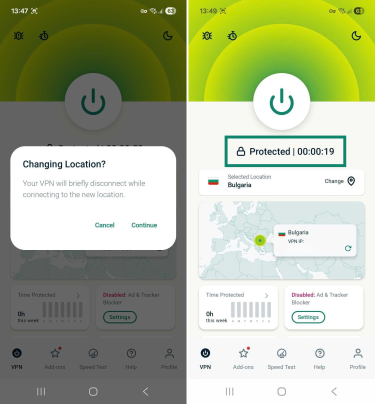
Your IP address will now be associated with the new VPN location. You can also disconnect and reconnect to the same location. ExpressVPN may assign you a different IP address, but it doesn’t guarantee a change each time you reconnect, and you can’t manually select a particular shared IP address. To get the same address every time, use a Dedicated IP.
Check that your IP address changed
After connecting, open our IP Address Checker in your phone’s browser. If the VPN is working as expected, you should see Your ExpressVPN IP address and a message saying Your IP address is secured.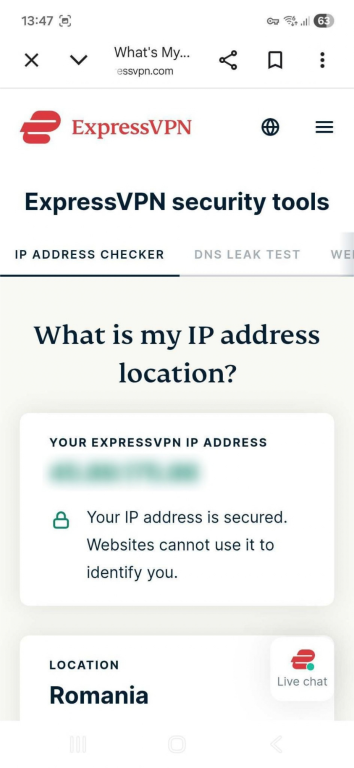
The check shows the public IP address your browser is using. It doesn’t confirm that every app on your phone is using the VPN. If the checker instead says your IP address is exposed, ensure that the app shows Protected and that your browser isn’t excluded through split tunneling, covered below. Then reload the checker.
Make sure your apps use the VPN IP address
Changing your IP address through ExpressVPN only works for traffic that actually travels through the VPN. The Internet Kill Switch, split tunneling, and Android's system-level blocking setting help control what happens if the VPN connection drops or becomes inactive.
Internet Kill Switch
ExpressVPN’s Internet Kill Switch blocks internet traffic if the VPN connection drops unexpectedly, so your regular IP address isn’t exposed while it reconnects. It’s on by default on Android phones and tablets.
To check it, tap Profile in the app and, in Settings, make sure Internet Kill Switch is on.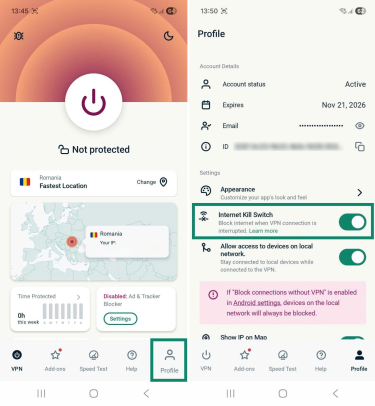
If the VPN drops, Android may show a notification with an Unblock internet option. Tapping it lets apps connect without the VPN, using your regular IP address. The Internet Kill Switch also doesn’t block the internet when you disconnect from ExpressVPN manually.
Block connections without VPN
Android's own Block connections without VPN setting blocks internet access whenever the VPN is off, including after you disconnect manually, which the Internet Kill Switch doesn't cover. It’s optional, needs Android 8.0 or later, and requires Always-on VPN. Some phones label it Only allow connections through VPN.
While it’s on, split tunneling doesn't work, and it may prevent access to local devices such as printers and smart TVs. To use this additional protection, our Android Kill Switch guide explains how to turn it on.
Split tunneling
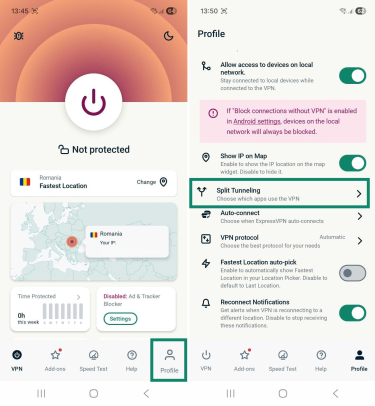
ExpressVPN's split tunneling feature lets you choose which Android apps use the VPN connection. Apps excluded use your regular connection and IP address, so check that your browser and any other apps you want on the VPN IP address are included.
- In the ExpressVPN app, tap Profile, then Split Tunneling.
- Check which option is selected:
- All apps use the VPN: The default routes all apps through the VPN.
- Do not allow selected apps to use the VPN: Apps on the list bypass the VPN. Remove any app that you want protected by tapping the minus icon next to it. If no apps have a minus icon, none are excluded.
- Only allow selected apps to use the VPN: Only the listed apps use the VPN. Add other apps you want to protect by tapping the plus icon next to them.
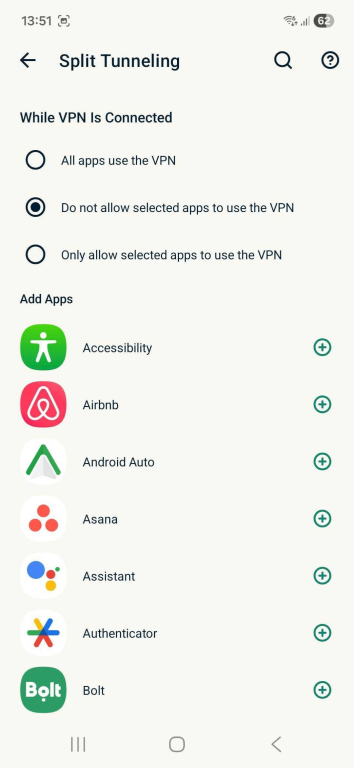
Changes take effect the next time you connect. If you change the settings while connected, disconnect and reconnect to apply them. Our split tunneling guide has the full steps.
Use the same IP address every time with Dedicated IP
ExpressVPN’s Dedicated IP option assigns you an exclusive IP address, and you get the same one every time you connect, unlike a shared IP address.
A consistent IP address can be useful when a work system allows connections only from approved IP addresses. Your administrator can add it to the allowlist. It may also mean fewer extra verification checks from services that watch for changing locations, such as banking apps, and fewer CAPTCHAs since no other VPN users share the address.
ExpressVPN uses a blind token system to keep your Dedicated IP separate from your account and payment details. There are limits, though. Because only you use the address, a website can recognize it across visits more easily than a shared one, and some sites restrict VPN addresses whether they’re shared or dedicated.
A Dedicated IP is included with Express Pro and available as a paid add-on for the Basic and Advanced plans. Our Android dedicated IP guide covers all the setup details.
Want a different IP address on your Android phone?
Connect to an ExpressVPN server in 113 countries to change the public IP address websites see, and use the IP address checker to confirm the change.
Try it risk-free with our 30-day money-back guarantee for new users.
FAQ
Why does my IP address show a different city or country?
Your IP address shows a different city or country because you’re connected to an ExpressVPN location or because a website’s geolocation database is inaccurate. Check your selected location in the ExpressVPN app first. Websites estimate location from databases that can be outdated or disagree with each other, especially at city level.
For a small number of virtual locations, the IP address is registered in the country you chose, but the physical server is in a nearby country. If a website shows the wrong country for your IP address, try another ExpressVPN location in the country you want.
Can I go back to my original IP address on Android?
Yes, you can return to your carrier's or ISP's public IP address by disconnecting from ExpressVPN. If Android’s Block connections without VPN setting is on, turn it off to restore internet access.
Can I change my IP address on Android without a VPN?
Turning airplane mode on and off may give your Android phone a new public IP on mobile data, but the address still belongs to your carrier and the connection isn’t encrypted. Reconnecting to the same Wi-Fi network usually won’t change your public IP address.
Why hasn't my IP address changed after connecting to ExpressVPN?
Your public IP address may not appear to have changed if your VPN connection isn't active or your browser is excluded through split tunneling. Check that ExpressVPN shows Protected, review your split tunneling settings, reconnect after making any changes, and reload the IP address checker. If the problem continues, see our Android connection troubleshooting guide.
Does ExpressVPN change my IP address every time I connect?
ExpressVPN doesn’t guarantee a different public IP address each time you reconnect to the same location. With a standard shared IP, you may receive a new address or the same one. With a dedicated IP, you get the same address every time you connect to it.
Does changing my IP address make me anonymous?
Changing your public IP address doesn’t make you anonymous online. Connecting to ExpressVPN on Android replaces your carrier’s or ISP’s IP address with one of its server’s IP addresses. Accounts you log into, cookies, and details about your browser and device can still identify you. ExpressVPN helps protect your connection and mask your public IP address; it doesn't eliminate every way websites can recognize or track you.